📋 Table of Contents
Slow internet is one of the most frustrating tech problems in modern life. Whether you're buffering videos, struggling with video calls, or waiting ages for downloads, poor internet speed disrupts everything. But before you blame your ISP, there's often a lot you can do yourself to dramatically improve your internet speed.
In this guide, we'll walk through 12 proven methods to diagnose and fix slow internet, from simple quick fixes to more advanced optimizations. Most users see immediate improvement within the first 5 methods.
1. Test Your Current Speed
Before fixing anything, establish a baseline by testing your current speed. Visit speedtest.net or fast.com and note your download speed, upload speed, and ping.
Compare these numbers to what you're paying for. If your ISP promises 100 Mbps and you're getting 80-90 Mbps, that's normal (overhead). But if you're only getting 20 Mbps, there's a problem worth fixing.
Test your speed at different times of day. If it's fast in the morning but slow in the evening, the issue is likely network congestion from neighbors — not your equipment.
2. Restart Your Router (The Classic Fix)
Restarting your router clears its memory, resolves IP conflicts, and forces it to find the best WiFi channel. This simple step fixes internet issues more often than you'd expect.
- Unplug your router and modem from power
- Wait 30 seconds (important — allows full discharge)
- Plug in the modem first, wait 2 minutes
- Then plug in the router, wait 2-3 minutes
- Test your speed again
3. Optimize Router Placement
WiFi signal strength depends heavily on router placement. Many people hide their router in a cabinet or corner, which severely weakens the signal. For best performance:
- Center of your home: Place the router as centrally as possible
- Elevated position: WiFi signals travel outward and downward — place it on a shelf or mount it on a wall
- Away from interference: Keep away from microwaves, baby monitors, cordless phones, and thick walls
- Open space: Don't put it inside cabinets, closets, or behind TVs
- Antenna orientation: Point antennas vertically for horizontal coverage, or one vertical and one horizontal for multi-floor coverage
4. Change Your WiFi Channel
In apartments and dense neighborhoods, multiple routers compete for the same WiFi channels, causing interference. Switching to a less crowded channel can dramatically improve speed.
Download a WiFi analyzer app (like "WiFi Analyzer" for Windows or Android) to see which channels are congested. Then log into your router's admin panel (usually 192.168.1.1 or 192.168.0.1), find the Wireless settings, and change the channel to one that's less crowded. For 2.4GHz, channels 1, 6, and 11 are recommended as they don't overlap.
5. Switch to Faster DNS Servers
Your ISP's default DNS servers are often slow. Switching to a faster public DNS can improve browsing speed and page load times.
The best free DNS servers in 2026:
- Cloudflare:
1.1.1.1and1.0.0.1— Fastest public DNS - Google:
8.8.8.8and8.8.4.4— Reliable and fast - Quad9:
9.9.9.9— Includes malware blocking
Change DNS in Windows: go to
Settings → Network & internet → WiFi → Hardware properties → Edit next to DNS server
assignment. Switch to manual and enter your preferred DNS addresses.
6. Use Ethernet Instead of WiFi
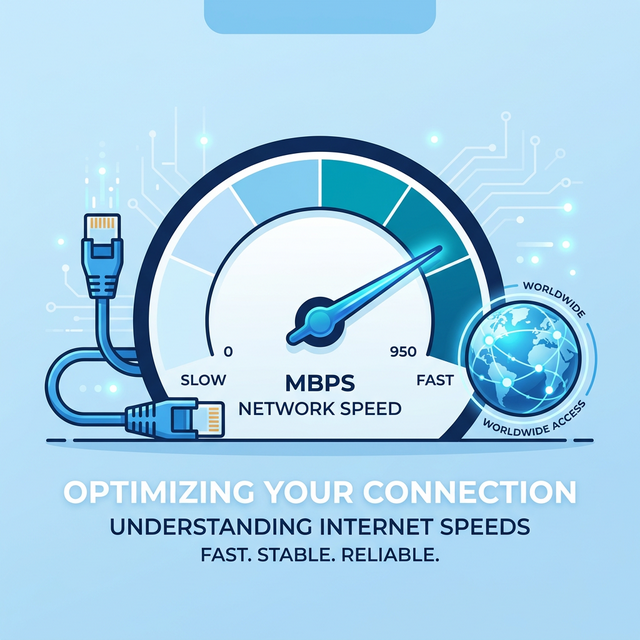
WiFi is convenient but always slower than a wired connection. If you need maximum speed for gaming, video calls, or downloads, connect your device directly to the router with an Ethernet cable. This eliminates wireless interference and can give you the full speed of your internet plan.
7. Disconnect Unused Devices
Every connected device shares your bandwidth. Smart TVs streaming in the background, phones downloading updates, and IoT devices all consume bandwidth. Disconnect devices you're not actively using, or set up a guest network for IoT devices to separate them from your main network.
8. Enable QoS (Quality of Service)
QoS lets you prioritize certain types of traffic, ensuring important activities like video calls get bandwidth before less critical tasks like downloads. Log into your router's admin panel and look for QoS settings. Prioritize real-time applications like video conferencing and gaming over file downloads and streaming.
9. Update Router Firmware
Router manufacturers release firmware updates that include performance improvements and security patches. Log into your router's admin panel, go to the firmware or update section, and check for available updates. Some modern routers support automatic updates.
10. Use the 5GHz WiFi Band
Most modern routers broadcast on two frequencies: 2.4GHz and 5GHz. The 5GHz band offers faster speeds but shorter range. If you're close to your router, always connect to the 5GHz network (usually shown as "YourNetwork_5G" or similar). The 2.4GHz band is better for devices far from the router.
11. Stop Background Downloads and Uploads
Cloud backup services (OneDrive, Google Drive, iCloud), Windows Update, game launchers (Steam, Epic), and torrent clients can silently consume your bandwidth. Check Task Manager's "Network" column to identify bandwidth-hogging applications and close or pause them during important tasks.
12. Contact Your ISP
If none of the above helps, the problem might be on your ISP's end. Call them and:
- Report the speed issue with your speed test results
- Ask them to check the line quality to your home
- Ask if there are network issues in your area
- Request a newer modem/router if yours is old
- Ask about upgrading your plan if your current speed doesn't meet your needs
Frequently Asked Questions
What's considered "slow" internet?
It depends on your activities. For basic browsing and email, 5 Mbps is adequate. For HD streaming, 25 Mbps is recommended. For 4K streaming and gaming, 50-100 Mbps is ideal. For households with multiple users, 100+ Mbps is recommended.
Will a WiFi extender help?
WiFi extenders can help with coverage but often halve your speed since they use the same channel to relay. A mesh WiFi system (like Google Nest WiFi or TP-Link Deco) is a better solution for large homes as it maintains speed throughout.
Does the number of browser tabs affect internet speed?
Indirectly, yes. Many open tabs consume RAM and CPU, and some tabs may be auto-refreshing or running scripts that use bandwidth. Close tabs you're not actively using.