📋 Table of Contents
That sinking feeling when you realize you've accidentally deleted an important file — a crucial work document, irreplaceable family photos, or a project you spent hours on. Don't panic! In most cases, deleted files can be recovered, even after emptying the Recycle Bin.
This guide covers 5 proven recovery methods, starting with the simplest options and progressing to more advanced techniques. The key is to act quickly — the sooner you attempt recovery, the higher your chances of success.
Stop using the drive immediately! When you delete a file, the data isn't immediately erased — the space is just marked as available. If new data is written to that space, your deleted file becomes unrecoverable. Minimize computer usage until you've attempted recovery.
How File Deletion Works in Windows
Understanding how deletion works helps you appreciate why recovery is possible:
- Regular delete (Delete key): The file moves to the Recycle Bin. It's easily recoverable — just right-click and "Restore."
- Permanent delete (Shift + Delete): The file bypasses the Recycle Bin. Windows removes the file's entry from the file system but the actual data remains on the disk until overwritten.
- Empty Recycle Bin: Same as permanent delete — the space is marked as available but data persists temporarily.
This is why acting fast matters: the data exists on your drive until something else overwrites that specific location.
Method 1: Check the Recycle Bin (Simplest)
Before trying anything advanced, always check the Recycle Bin first. Many users forget that deleted files go here by default.
Open Recycle Bin
Double-click the Recycle Bin icon on your desktop.
Find and Restore
Locate your file (use the search bar or sort by "Date Deleted"). Right-click it and select "Restore." The file returns to its original location.
You can increase the Recycle Bin size to keep more deleted files. Right-click the Recycle Bin → Properties → set "Custom size" to a larger value (e.g., 10% of your drive).
Method 2: Use File History (Windows Backup)
If you had File History enabled before the deletion, you can restore previous versions of files and folders.
Navigate to the folder where the file was located. Click the "History" icon in the toolbar (or right-click the folder → "Restore previous versions"). Browse through the time snapshots to find your file, select it, and click the green "Restore" button.
To enable File History for the future: go to
Settings → System → Storage → Advanced storage settings → Backup options and set up an
external drive for automatic backups.
Method 3: System Restore
If you created a System Restore Point before the deletion, you may be able to recover system files (though personal files aren't always included).
Search for "Create a restore point" in the Start menu, click "System Restore," and choose a restore point from before the deletion occurred. This will revert system settings and some files to their previous state.
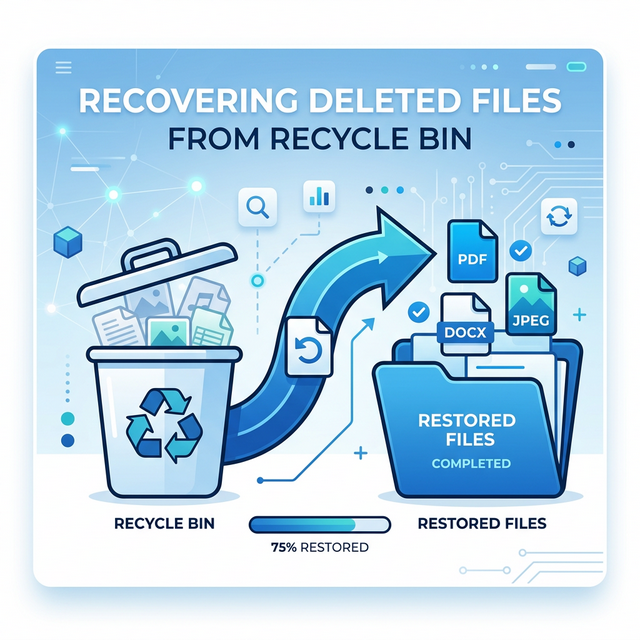
Method 4: Windows File Recovery (Free Microsoft Tool)
Microsoft provides a free command-line tool called Windows File Recovery that can recover permanently deleted files, even after emptying the Recycle Bin.
Install Windows File Recovery
Download it free from the Microsoft Store. Search for "Windows File Recovery" and click "Get."
Run the Recovery Command
Open Windows Terminal as Administrator and use this command
format:winfr C: D:\RecoveredFiles /regular /n \Users\YourName\Documents\filename.docx
Replace
the path with your file's location and use a different drive (like D:) for the recovery
destination.
Check Recovered Files
Navigate to the recovery destination folder and check if your files were successfully recovered.
Method 5: Previous Versions (Shadow Copies)
Windows automatically creates shadow copies of files and folders. Right-click the folder where your file was stored, select "Properties," and go to the "Previous Versions" tab. You'll see a list of available versions with dates — select one from before the deletion and click "Restore."
Preventing Future Data Loss
Prevention is always better than recovery. Here are essential habits:
- Enable File History: Set up automatic backups to an external drive
- Use cloud storage: Keep important files in OneDrive, Google Drive, or Dropbox for automatic syncing
- Create regular backups: Follow the 3-2-1 rule — 3 copies of data, on 2 different media types, with 1 copy offsite
- Increase Recycle Bin size: Right-click Recycle Bin → Properties and increase the storage allocation
- Be careful with Shift+Delete: Avoid using permanent delete unless you're certain you won't need the file
Frequently Asked Questions
Can I recover files after emptying the Recycle Bin?
Yes, using Method 4 (Windows File Recovery) or third-party tools. The sooner you act, the better your chances. Stop using the computer immediately to prevent the deleted data from being overwritten.
How long do deleted files remain recoverable?
It depends on how much you use your computer. On a lightly-used drive, files might be recoverable for weeks or months. On a heavily-used drive, they could be overwritten within hours or days.
Can I recover files from an SSD?
SSDs are more challenging because of the TRIM command, which tells the SSD to erase deleted data blocks. Recovery chances are lower on SSDs, especially if TRIM ran after deletion. Act fast — some SSD controllers delay TRIM operations.