📋 Table of Contents
Knowing your computer's specifications is essential whether you're buying new software, troubleshooting issues, upgrading hardware, or just curious about what's under the hood. In this guide, we'll show you 5 easy ways to check your CPU, RAM, GPU, storage, and other system specs on any Windows PC.
Why Check Your PC Specs?
There are many situations where knowing your specs is helpful:
- Software compatibility: Check if your PC meets a game's or application's minimum requirements
- Upgrading components: Know what you have before buying new RAM, SSD, or GPU
- Troubleshooting: Tech support often asks for your system specs
- Selling your PC: List accurate specs when selling used hardware
- Performance benchmarking: Compare your hardware against others
Method 1: Windows Settings (Quickest)
The easiest way to see your basic specs is through Windows Settings.
Open Settings
Press Windows + I to open Settings, then go to System → About.
Here you'll see:
- Device name — Your computer's network name
- Processor — CPU model and speed (e.g., Intel Core i7-13700K @ 3.40 GHz)
- Installed RAM — Total memory (e.g., 16.0 GB)
- System type — 64-bit or 32-bit operating system
- Windows version — Edition and build number
Method 2: System Information (Most Detailed)
For comprehensive hardware information, use the built-in System Information tool.
Press Windows + R, type msinfo32, and press Enter. The System Information
window opens with detailed specs organized into categories: System Summary, Hardware Resources,
Components, and Software Environment.
Navigate through the sections to find specific information. The "Components" section includes details about your display adapter (GPU), sound devices, network adapters, storage, and more.
You can search within System Information! Use the search bar at the bottom to quickly find specific hardware details. For example, type "GPU" or "display" to jump to graphics card info.
Method 3: DirectX Diagnostic Tool (Best for GPU)
The DirectX Diagnostic Tool provides excellent GPU (graphics card) information, which is particularly useful for gamers.
Press Windows + R, type dxdiag, and press Enter. Click through these tabs:
- System tab: CPU, RAM, Windows version, DirectX version
- Display tab: GPU name, manufacturer, dedicated video memory (VRAM), driver version
- Sound tab: Audio device information
- Input tab: Connected input devices
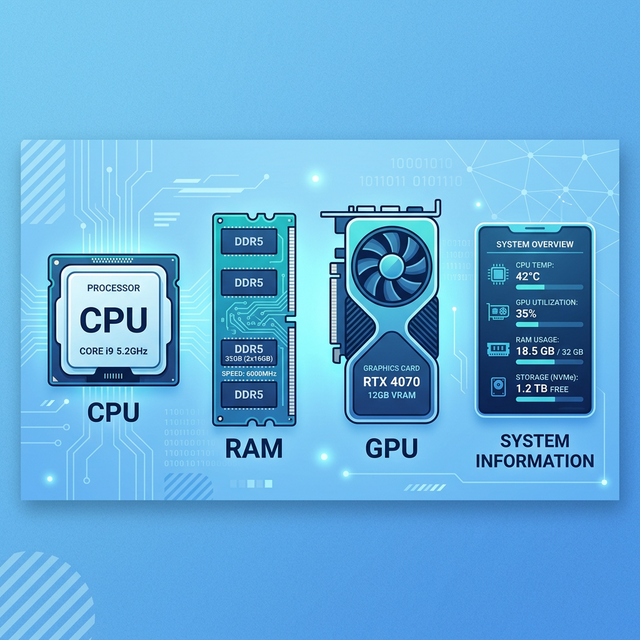
Method 4: Task Manager (Real-Time Performance)
Task Manager shows your specs along with real-time performance data, helping you see how your hardware is performing under load.
Press Ctrl + Shift + Esc to open Task Manager. Click the "Performance" tab. Here you can
see:
- CPU: Model name, base speed, cores, threads, current utilization, uptime
- Memory: Total RAM, speed, slots used, form factor
- Disk: Drive type (SSD/HDD), capacity, read/write speeds
- GPU: Graphics card model, dedicated memory, utilization, temperature
- Network: Adapter name, connection speed
Method 5: Command Prompt (For Power Users)
For a text-based overview, open Command Prompt and type systeminfo. This displays a
comprehensive list including OS version, hardware abstraction layer, processor info, RAM, network
adapters, and installed hotfixes. You can also use wmic cpu get name for just the CPU name
or wmic memorychip get capacity for RAM stick sizes.
Understanding Your Specs
Here's a quick guide to understanding common specifications:
- CPU (Processor): Higher GHz = faster. More cores = better multitasking. Intel Core i5/i7 and AMD Ryzen 5/7 are mainstream choices
- RAM (Memory): 8GB = minimum for modern use. 16GB = recommended. 32GB = for heavy workloads and gaming
- GPU (Graphics Card): Integrated (built into CPU) is fine for basic tasks. Dedicated GPU (NVIDIA/AMD) is needed for gaming and video editing
- Storage: SSD = fast, HDD = slow but cheaper. NVMe SSD is the fastest
Frequently Asked Questions
How do I check if my PC can run a specific game?
Check the game's minimum/recommended requirements on its store page, then compare with your specs using any method above. Pay special attention to CPU, GPU, and RAM requirements.
What's the fastest way to find my GPU model?
Press Ctrl + Shift + Esc (Task Manager), click "Performance" tab, then click "GPU 0" on the
left side. The GPU name is shown at the top right.
How do I check how much storage I have left?
Open File Explorer, click "This PC" in the left sidebar. All your drives are listed with used/free space shown as a bar chart.