📋 Table of Contents
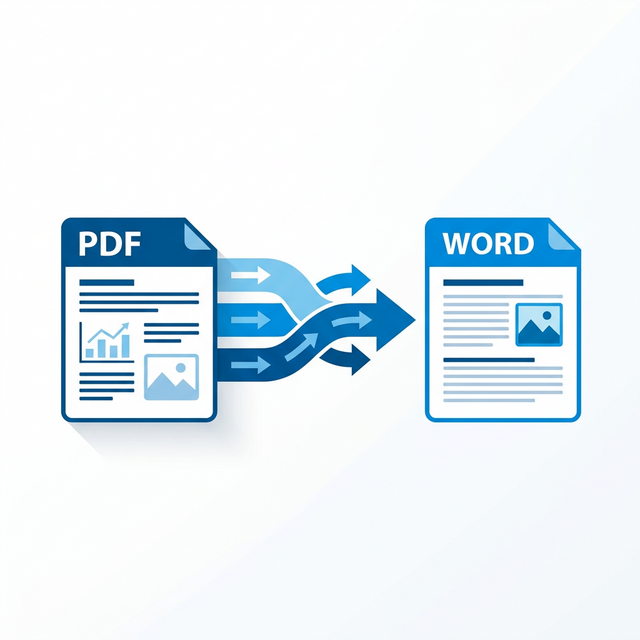
Need to edit a PDF document but can't? PDF files are designed to preserve formatting and aren't meant to be easily edited. But sometimes you need to make changes — whether it's updating a resume, modifying a contract, or editing a school assignment. The solution is converting your PDF to an editable Word document.
In this guide, we'll show you 5 completely free methods to convert any PDF to Word format, including methods that don't require downloading any software.
Why Convert PDF to Word?
There are many reasons you might need to convert a PDF to Word:
- Edit text content: Fix typos, update information, or rewrite sections
- Reformat the document: Change fonts, layout, or styling
- Extract text or images: Copy content for use in other documents
- Fill out forms: Some PDF forms aren't interactive — converting lets you fill them in
- Collaborate: Word documents are easier to share and co-edit with others
Method 1: Using Microsoft Word (Easiest)
If you already have Microsoft Word installed, this is the simplest method — Word can open and convert PDF files directly.
Open Word
Launch Microsoft Word on your computer.
Open the PDF
Go to File → Open and navigate to your PDF file. Select it and click "Open."
Convert and Edit
Word will display a message saying it will convert the PDF to an editable Word document. Click "OK." The document opens as a Word file that you can edit freely. Save as .docx when done.
Word's conversion works best with text-heavy PDFs. For PDFs with complex layouts, images, or tables, the formatting may shift slightly. Review the converted document carefully.
Method 2: Using Google Docs (Free, No Install)
Google Docs offers a completely free online method that works on any device with a browser.
Upload to Google Drive
Go to drive.google.com and drag your PDF file into the browser to upload it.
Open with Google Docs
Right-click the uploaded PDF and select Open with → Google Docs. Google will
automatically convert the PDF to an editable document.
Download as Word
Go to File → Download → Microsoft Word (.docx). The file downloads to your computer
as an editable Word document.
Method 3: Free Online Converters
Several reliable online tools can convert PDFs to Word without any registration or software installation:
- Smallpdf.com: Clean interface, no registration needed for basic conversions. Drop your PDF and download the Word file in seconds.
- ILovePDF.com: Supports batch conversion of multiple PDFs at once. Free with reasonable file size limits.
- PDF2Go.com: Offers additional options like OCR for scanned documents.
When using online converters, your file is uploaded to their servers for processing. Avoid uploading sensitive or confidential documents to free online tools. For sensitive documents, use Microsoft Word (Method 1) or Google Docs (Method 2) instead.
Method 4: Adobe Acrobat Online (Best Quality)
Adobe created the PDF format, so their converter typically produces the best results. Visit Adobe's free online converter, upload your PDF, and download the Word file. You get a limited number of free conversions per day.
Tips for Best Conversion Results
- Use high-quality source PDFs: The better the original PDF quality, the better the conversion
- Text-based PDFs convert best: PDFs created from Word documents or text editors produce the best results
- Scanned PDFs need OCR: If your PDF is a scanned image, you'll need OCR (Optical Character Recognition) to extract the text. Google Docs handles this automatically
- Check formatting after conversion: Some elements like tables, columns, and images may shift during conversion
- Keep the original PDF: Always save a copy of the original PDF before converting
Frequently Asked Questions
Will the formatting be exactly the same?
In most cases, the text content will convert accurately, but complex formatting (tables, columns, headers/footers) may shift slightly. Simple text documents convert almost perfectly. The more complex the layout, the more manual cleanup may be needed.
Can I convert a scanned PDF to Word?
Yes, but you need OCR technology. Google Docs has built-in OCR — just open the scanned PDF with Google Docs and it will attempt to recognize the text. For best results with scanned documents, try Adobe Acrobat Online or specialized OCR tools.
Is it really free?
Yes! All four methods described in this article are completely free. Microsoft Word requires a license (but many people already have it), Google Docs is free with a Google account, and the online tools offer free tiers.